How to use Higgsfield Genjutsu in five steps
To use Higgsfield Genjutsu, open it on higgsfield.ai, choose Motion Transfer or Object Swap, upload one 4 to 30 second video, add reference images if you need them, pick a preset or write a short description, then generate and compare the result with your source clip.
The credit cost is shown before you confirm. This guide covers how to use Higgsfield Genjutsu without wasting credits.
How to use Higgsfield Genjutsu: the five steps
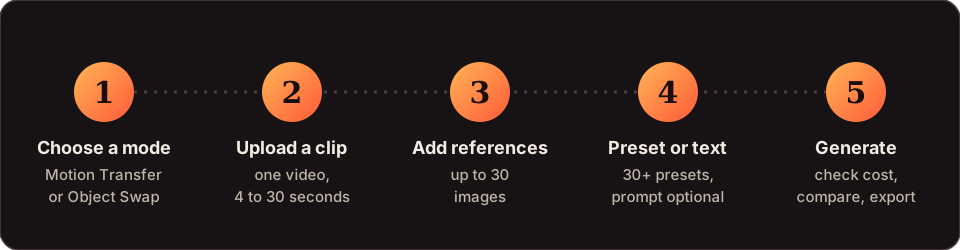
-
Open Genjutsu and choose a mode
Pick Motion Transfer to give a new cast or world to an existing performance, or Object Swap to change one named element and keep the rest. Not sure which? The feature guide compares them.
-
Upload your source video
Add one clip between 4 and 30 seconds. Trim it to the part that matters, because price follows length and resolution. A clip where the subject is clearly visible is the easiest place to begin.
-
Add reference images if needed
Upload up to 30 images that define the character, outfit, product, location or style you want. The table below shows what makes a good reference.
-
Choose a preset or add a short description
Select one of the 30+ presets for a ready-made change, or describe the change in a sentence. A full prompt is not required. Need wording? Copy from the prompt templates.
-
Generate and review
Check the credit cost, run it, then compare the result with your source clip and export the version you want to keep.
Prepare before you spend credits
- Trim the clip to the exact shot. Fewer seconds cost less.
- Collect references first. One clear picture per thing you want to appear, and a consistent set if the same person returns in several videos.
- Name the change. "The red jacket" is easier for the tool to find than "the outfit".
- Check your rights. You need permission for the footage and its audio, even when the picture is rebuilt.
Reference images that work
| Reference for | Do | Avoid |
|---|---|---|
| A person | Several angles, same lighting, clear face | One selfie, mixed lighting, sunglasses |
| A product | One clean shot on a plain background | A busy desk with other objects in frame |
| An outfit | Full length, neutral pose, even light | Cropped, folded or heavily filtered photos |
| A location | A wide, uncluttered view of the place | A collage of several different places |
| A series | The same reference set for every clip | New pictures each time |
Wardrobe, lighting and background texture from a reference picture can carry into the result, so clean, neutral pictures are safer than busy ones.
Write a description that works
The description is optional, but a short, specific one beats a vague one. Here is how to use Higgsfield Genjutsu's description box well: name one thing, say what it becomes, and say what stays.
| Vague | Specific |
|---|---|
| Make it cooler | Replace the red jacket with a black leather bomber jacket. Keep everything else as filmed. |
| Change the person | Replace the dancer with the character in the reference images. Keep the camera moves. |
| Anime style | Turn the live-action clip into a hand-drawn anime look with flat colour and clean outlines. Keep the motion. |
| Better lighting | Change the lighting to warm evening light. Keep the person and the background. |
More wording to copy, and a builder that writes the sentence for you, are on the prompts page.
A worked example: how to use Higgsfield Genjutsu on a product swap
Illustrative, not a recorded testSay you have a 12-second clip of a presenter holding a white mug, and you want the same take with a green mug from your product photos.
- Choose Object Swap, because only one thing changes.
- Upload the 12-second clip and two photos of the green mug, one from the front and one from the side.
- Write: "Replace the white mug with the green mug in the reference images. Keep the hand, the pose and the background as filmed."
- Read the credit cost the generator shows, run a draft at 480p, and look at the mug shape and the grip.
- If the mug and hand look right, render the keeper at a higher resolution. If not, change one word in the description or swap one reference picture and run another draft.
The numbers in this example are yours to see in the generator. For scale, Higgsfield lists a 15-second run at 40 credits in 480p and 144 credits in 1080p.
How to use Higgsfield Genjutsu without wasting credits
Higgsfield's launch guide prices a 15-second clip at 40 credits in 480p, 104 in 720p and 144 in 1080p. That makes a simple routine worth following.
Draft small
Run the idea at 480p first. Three drafts cost 120 credits, which is less than one 1080p run at 144.
Finish once
When a draft looks right, render the keeper at 1080p. Three drafts plus one final come to 264 credits, about $13.20, against 576 credits for four runs at 1080p.
Based on 15-second clips and Higgsfield's listed prices. Other lengths are priced in the generator before you run. See the cost page for the full table and a calculator.
When the result is off
| Problem | Likely cause | Try this |
|---|---|---|
| The face changes between shots | No reference images, or mixed lighting in them | Add several angles in the same lighting and reuse the set |
| Clothes or lighting from the references leak in | Busy or textured reference pictures | Use clean, neutral references with plain backgrounds |
| Something you did not mean to change moved | The change was described too broadly | Name one element, or switch to Object Swap |
| The new scene drifts too far from the clip | Too many changes in one run | Change one thing per run and trim the clip |
Review and publish
- The person looks like the same person from the first frame to the last.
- The movement and camera match your source clip beat for beat.
- Hands, edges and fast motion look clean at full screen.
- Any text or product label is still readable.
- You have the right to use the audio that goes with it.
Before you publish, check the rules of the platform you post on for AI-generated content, and keep your source files and references in case you need to prove what you started from. That is the whole routine. Now you know how to use Higgsfield Genjutsu, keep your first runs short and cheap, then scale up once the look is right.
Using Higgsfield Genjutsu: questions
Do I need editing experience to learn how to use Higgsfield Genjutsu?
No. Higgsfield says you upload your video and references, choose Motion Transfer or Object Swap, describe what you want to change and generate. The skill is in preparing a clean clip and clear references, not in editing.
Can I use a phone video with Higgsfield Genjutsu?
Yes. A raw phone clip is one of the use cases Higgsfield names, for example turning it into a polished ad. Trim it to the shot you need first.
How long can my clip be and how many images can I add?
One clip of 4 to 30 seconds and up to 30 reference images per generation, with output up to 1080p. Our $9.90 done-for-you service is narrower: 4 to 15 seconds and up to 8 images.
What if the face keeps changing between shots?
Add reference images of that person from several angles in consistent lighting, and keep the same set for every run. Words alone will not lock a face.
Should I describe the whole scene in the description box?
No. Describe only the change, and say what must stay. A preset can do the whole job on its own, and the description is optional.
Where should I start when learning how to use Higgsfield Genjutsu?
Open the official Genjutsu page on higgsfield.ai and choose a mode. The credit cost appears before you confirm a run.
Can I use the result for a client?
Higgsfield's Terms of Use allow commercial use of outputs and let you transfer your rights in them to clients. You still need the rights to your source footage, its audio and anyone who appears in it.
What if I would rather not do this myself?
You can order a finished video for $9.90 instead. Send the clip and references and we deliver within 48 hours of payment.